POE ASSISTANT
Take care of your hands and mind!
Works with POE1 and POE2
We have over 18000 users — join the community and give it a try!
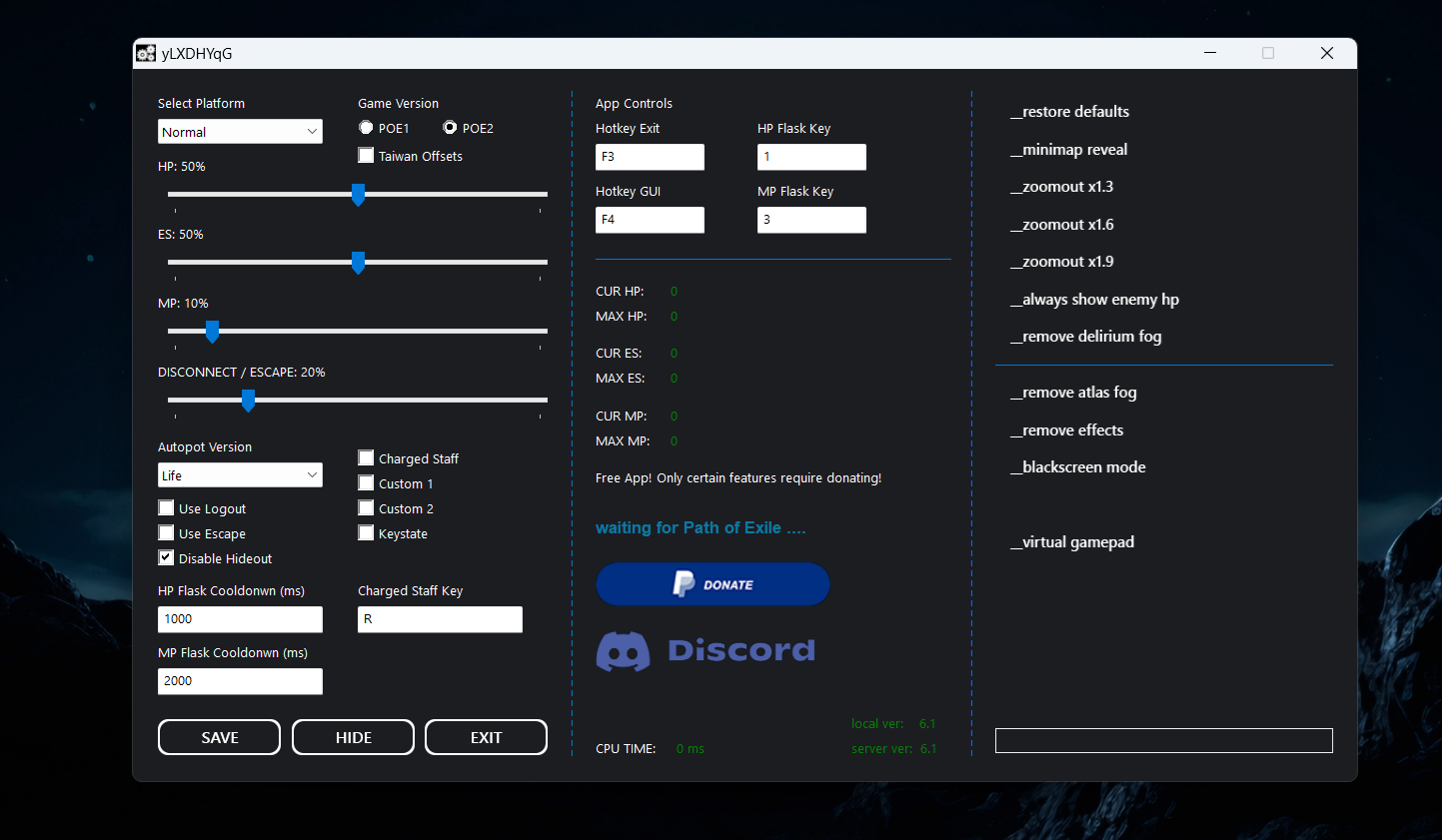
Feature Set & Functionality
- Works with POE1 and POE2!
- Autopot – Supports Controllers, Mind over Matter, and Hybrid builds
- Auto Logout/Escape on HP/ES/Mana threshold
- Drowning Safety-Net to prevent accidental deaths
- Enhanced Visibility & UI Tweaks
- Remove Atlas Fog & Highlight Paths
- Zoomout – x1.3, x1.6, x1.9, x2.4, x3.0
- Minimap Reveal – Fog of War remains rendered, showing explored areas
- Always Show Enemy HP – Health bars always visible
- Remove Delirium Fog
- Blackscreen Mode for botting – Disables 3D rendering but keeps UI visible
- Custom Visual Presets for Performance & Clarity
- Remove fog, bloom, environment effects, shadows, water, excessive particles
- Disable ground loot models, excessive MTX, corpses
- Faster rendering and light calculations
- Text & Effect Filtering
- Highlight critical item/map text (e.g., immune monsters, bad mods)
- Full effect removal of specific spells and abilities
- Scripting & Automation
- Autocast Charged Staff, Flicker Strike, Tempest Bell, Unbound Avatar, Elemental Invocation
- Fully customizable rule-based automation
- Scripting is fully open-source
- Community scripts available – Contributions welcome!
- Help is available for those struggling with scripting
- Application Security & Updates
- The app does not inject any code at runtime; it simply reads game memory
- Minimap reveal and zoom-out are applied by editing specific game files before launch
- Server-side offset updates on startup
- Automatic updates on major releases
- As secure as it can be
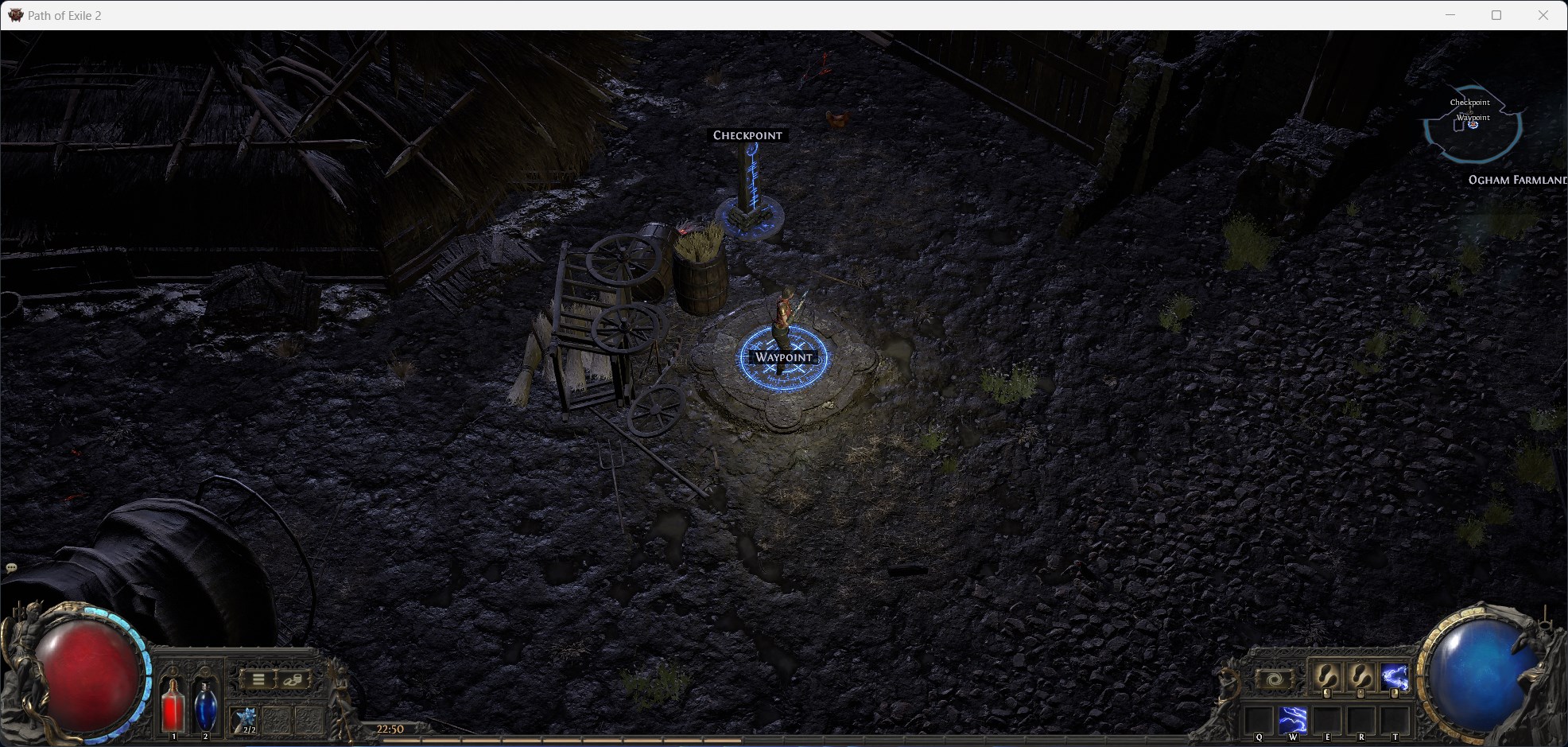
Before / After — Heavy Preset
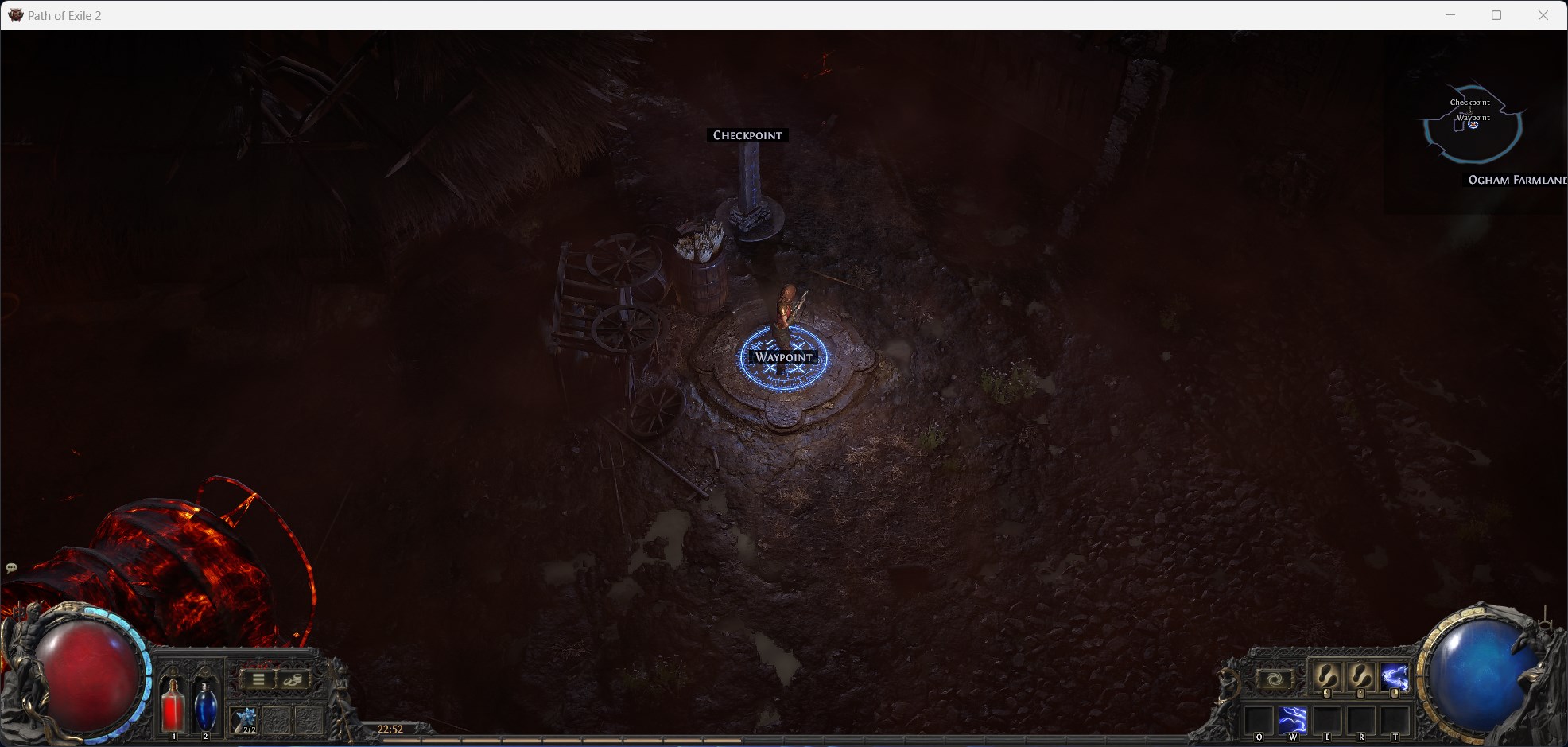
 Original
Click to compare
Original
Click to compare
Quality of Life For Everyone!
We have over 18000 users — join the community and give it a try!
Assistant Updater
get the app downloaded — and kept up to date — with a single click.
how to
- must have dependency: .NET Desktop Runtime 8.0.28 (x64)
- must have dependency: Visual C++ Redistributable Runtime (all-in-one)
- get the updater here: updater.zip
- start and select a folder (it must be empty)
- click Install and read the warning (you must follow its advice or it will not work)
- that's it, done — a shortcut to Assistant is on your desktop
known issues
-
using OneDrive with your desktop included will fail to produce the shortcutsolution: stop using OneDrive at all, or get your desktop finally out of it
-
extraction issues come from your antivirussolution: do not ignore the warning message and exclude the install folder fully
Assistant App
the main app — set it up, then dive into scripting.
01basics
- the app must start as administrator
- select the correct game version and then you can start the game
- adjust sliders and checkboxes to your needs
- start game file edits on the right side with a single click
- orange options are paid features
02advanced
- to run custom-made scripts (community ones or your own) you simply enable the checkbox and you're done
- naturally those scripts are empty until you fill them
- for that you can edit the
.AHKfiles and create your own, or copy over others - the assistant folder includes a
scriptsfolder with some examples - to use those: copy the whole content into e.g.
THREAD_CUSTOM_1.AHKand enable that specific checkbox in the UI — and that's the concept of how to run it - discord also has a #scripting-forum channel with user-made scripts to copy from; here you must read the author's notes too to understand how to use it properly
how do you make your own?
- follow along the examples and see what you can do solo or with ai alongside
- here are the current memory exposures:
| property | meaning |
|---|---|
| .ERROR | "NONE" means everything is good |
| .CURHP | player current HP |
| .CURMANA | player current MP |
| .CURES | player current ES |
| .MAXHP / .MAXMANA / .MAXES | the matching maximum values |
| .BUFFLIST | use .HasKey("...") to check if a buff is present |
| .BUFFLIST["key"] | a buff exposes .DURATION, .CHARGES, .UISTACK |
| .CURAREA | name of the current area |
; check a buff and react on its remaining duration
if ( _POEMEMORY.BUFFLIST.HasKey("tangle_drowning") == true ) {
    if ( _POEMEMORY.BUFFLIST["tangle_drowning"].DURATION < 0.8 ) {
        ; ... your action here
    }
}
if (_POEMEMORY.BUFFLIST["power_charge"].CHARGES > 0) {

    if (_POEMEMORY.BUFFLIST["charged_staff_stack"].DURATION < 2.0) {
        PressKey(_SCRIPT_CHARGED_STAFF_KEY, 1000)
    }
    else if (_POEMEMORY.BUFFLIST["power_charge"].DURATION < 2.0) {
        PressKey(_SCRIPT_CHARGED_STAFF_KEY, 1000)
    }

}
; reverse case — act when a buff is missing
if (_POEMEMORY.BUFFLIST.HasKey("guard_flask_damage_absorption") == false)
{
    PressKey(_SCRIPT_HP_FLASK_KEY, 50)
    THREAD_WAIT(1000)
    PressKey("Q", 50)
}
use the Debug checkbox to list everything currently available on your character, live.
Overlay POE
a radar overlay for poe2 with a live settings dashboard you run right in your browser.
open the dashboard
- launch the overlay — the settings server starts together with it
- open
localhost:5005in any browser to reach the dashboard - it is bound to your machine only and read-only from the outside, so it stays private
- every change applies to the overlay live — there is no save button and no restart
- the dashboard is made to be explored, so poke around and learn by doing
the dashboard views
the sidebar groups every tool under ENTITY DATA. here is what each view does at a glance — deeper guides for the important ones will follow.
GGPX Editor
a tool that patches your poe2 game files — load a preset, or tweak everything skill by skill.
overview
load a ready-made preset for a clean, one-click setup — or go granular and enable and disable skills one by one. there are plenty of extra options for anyone who wants to dive deeper.
- select your path of exile installaiton folder
- load a preset for an instant, proven setup
- or enable and disable skills individually for full control
- dig into the advanced tabs for visual tweaks, spells, mtx and more
01csd color
recolor the game's stat text. find a stat, give it a color, and save — handy for making important mods jump out.
- pick a language and a CSD file at the top
- search the stat text you want (for example Movement Speed)
- choose a color from the palette, or type an RGB value and hit Use
- mark the results you want to recolor
- click Save CSD colors to write them into the game
- Load preset, Import and Export let you reuse and share color sets
02load ggpx
download and load ready-made ggpx packs.
- click Download GGPX PAK to fetch the latest packs
- each pack shows up in the list with its own Load button
- click Load on the one you want to apply it
03rules
rule files fine-tune what each toggle keeps or removes. they live in a rules folder next to the app and are created automatically on first startup.
- open the RULES tab to see every rule file
- click Edit next to a file to open it in the editor
- change what you need, then click Save
- new rule files are generated for you on startup, so there is nothing to set up first
backup / restore
save your current setup, or roll everything back to a clean slate.
- create your own backup to snapshot your current setup before you experiment
- or download the remote backup, which restores the full defaults
- either way it is applied live, so you land on a known-good state right away
Trade Bot
two parts working together — a browser addon and the buybot.
how it works
the trade bot has two parts: the autotravel addon clicks travel the moment something comes up, and the buybot does the rest.
required: it only works together with the autotravel addon for the Brave browser. the addon is available only in discord: #autotravel-addon
requirements
- use multiple windows, not tabs — multiple tabs do not work, but multiple windows do
- only 720p, 1080p or 1440p window mode is supported
- turn any upscaling and hdr weirdness off
- keep everything on default settings — that is what gives a flawless experience
settings
| setting | what it does |
|---|---|
| armed enable | the master switch — when armed, the bot will actually click and buy. |
| back to hideout | after a successful buy, send your character back to the hideout. |
| play sound on buy | play a sound whenever a buy goes through. |
| buy clicks (x) | how many times the bot tries the buy — higher values help with latency and false "not enough currency" messages. |
| max load wait (sec) | how long to wait for loading to finish before accepting it as a failure. |
| refresh page after cycle | refresh the current window after a cycle to hunt another item. |
| refresh delay (sec) | how long to wait after a buy before refreshing. |
| max refresh (0 = inf) | how many times to refresh before stopping — 0 means infinite. |
| App port (restart to apply) | the local web server port; change it only if another app conflicts. restart to apply. |
In-depth Scripting
the framework every script follows, plus three real examples — see exactly how they are built.
the framework
every script starts from the same skeleton. it pulls in the thread dependencies, waits a moment so memory is ready, loads your settings, then runs a main loop. the loop only acts when the game is in a valid state — _POEMEMORY.ERROR is "NONE", you are not in town, you are alive, and the poe window is focused. your own logic goes where it says YOUR CODE GOES HERE.
loading…
01buff timer overlay
a live on-screen timer for a single buff. it watches BUFFLIST for a chosen buff (here bedlam) and draws a small always-on-top gui showing its remaining duration, hiding it again the moment the buff drops. this shows how to build a transparent overlay and keep it centered on the poe window as it moves.
loading…
02charges hud
a charges display. it reads power, frenzy and endurance charges from BUFFLIST and shows them as colored panels that lay themselves out dynamically — only the charges you actually have are drawn, and each panel resizes to fill the bar. this shows how to manage several gui controls at once and only redraw a value when it changes.
loading…
03timed keybind
a custom keybind. it remaps q so that — only while the script is active in a valid game state — pressing q first taps t, waits a moment, then holds q down for a set duration. outside of a valid state q behaves completely normally. this shows how to drive a timed input sequence from a single hotkey.
loading…
AI Agent Scripting
don't want to learn autohotkey? hand this prompt to an ai agent and describe what you want — it already has everything it needs to write a working script.
copy the prompt below, paste it into your ai of choice, then tell it what the script should do. paste the result into a THREAD_CUSTOM_X.AHK file and enable that checkbox — see In-depth Scripting for how to run it.